Library View
In this lesson you will examine the main components of Lightroom in Library view.
Library View

Select Library.
if this is not visible on screen, then press the small white triangle at the top of the screen.
Library layout
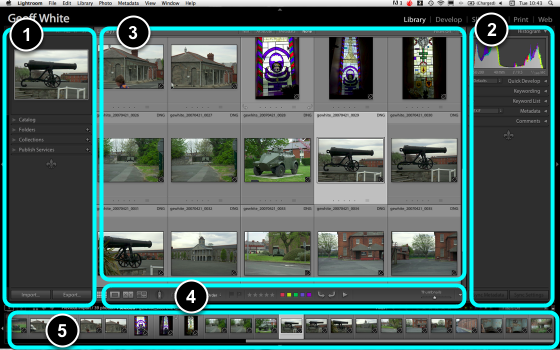
- Left Panel - contains the Catalog, Folders and Collections.
- Right Panel - contains the Histogram, Quick Develop tools, Keywording and Metadata.
- Content Area - contains your images which can viewed in four different modes.
- Tool Bar - this selects different views of the Content Area and gives access to some of the editing tools.
- Filmstrip - this allows for the selection images when not in Grid View.
Content Area - Grid View
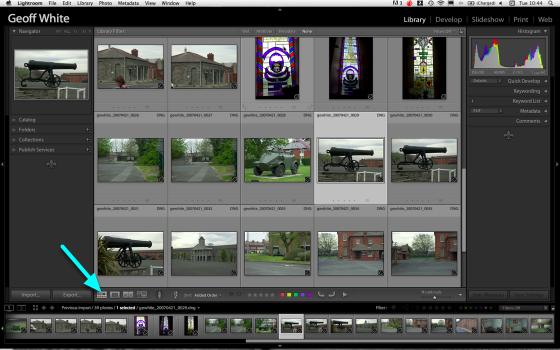
To select Grid View:
Enter the letter G, or select the Grid icon on the Tool Bar.
Loupe View
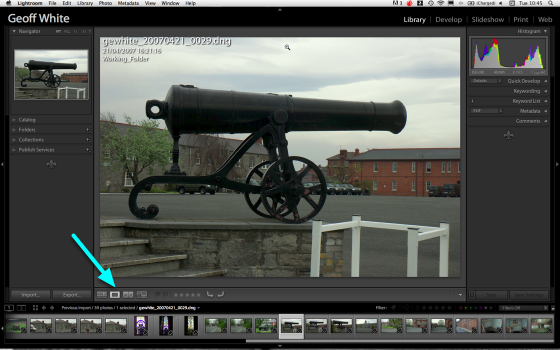
To select Loupe View:
Enter the letter E, or select the Loupe View icon on the Tool Bar.
Filmstrip

This allows you to select images for viewing in Loupe View and Survey View.
- Mouse Click to select a singe image.
- CMD + Mouse Click to select a second or subsequent image.
Survey View
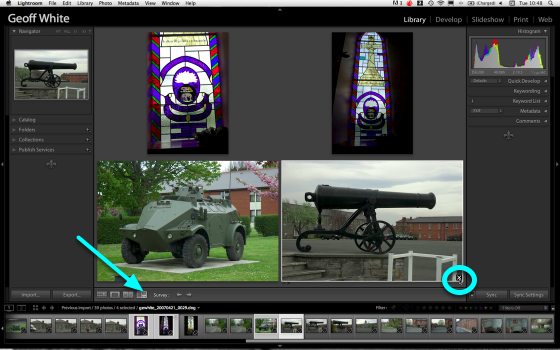
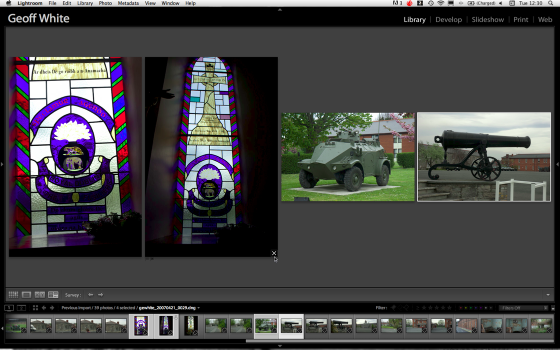
Survey Mode allows for two or more images to be viewed at the same time.This useful for editing purposes.
- Select two or more images in the Filmstrip.
- Enter the letter N, or select the Survey View icon on the Tool Bar.
- To remove an image from Survey View simply select the X icon on the bottom right of the image.
Opening and closing Panels
The Panels can be opened or closed to create more on screen room as follows:
- TAB key opens and closes the Left and Right Panels.
- TAB + SHIFT opens and closes all Panels.
- Individual Panels can be opened or closed using the small white triangles beside each Panel.