Adding additional Keywords after Import
You will now add additional Keywords to individual images as is appropriate to each one. There are a number of different methods for doing this.
Grid View
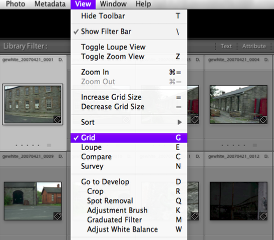
Ensure that you are in Grid View.
Enter the shortcut; "G" or go View > Grid.
Keywords from Import phase
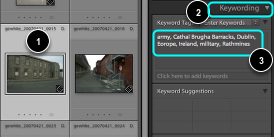
- Select an imaage.
- Open the Keywording panel.
- Note the Keywords in the panel for that image from import.
Entering a new Keyword
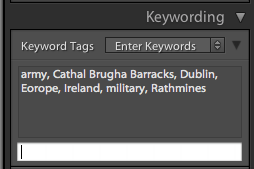
Clisk on below the text area where is says: Click here to add Keywords.
Enter new Keyword
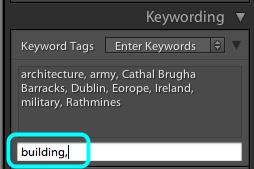
Add a new word followed by a coma.
You can enter several words at a time but each keyword must be followed by a coma.
Press Enter to complete the action.
The Spray Can

Select the Spray Can from the Toolbar at the bottom of the screen.
Enter Keywords

- Ensure that Keywords is selected in the drop down menu.
- Now enter your new Keywords in the text box, plus comas.
Spray Keywords
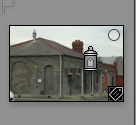
Now using the Mouse, click on any images that you want to add the new keyword(s) to.
Assigned Keywords

As you spray each image the above notice will be flashed on screen.
If you spray an image a second time, the same Keywords will be removed from the image again.