Saving and loading a selection as an Alpha Channel
In this tutorial you will save a selection for future use in the channels as an Alpha Channel.
Marching ants

Make a selection in which ever way is most appropriate for the image you are working on.
Save Selection
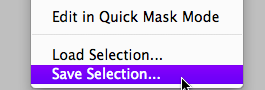
Go: Select > Save Selection . . .
Save selection
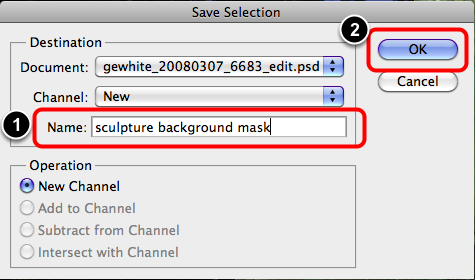
- Enter a name for the new channel.
- Select: OK.
New Alpha Channel
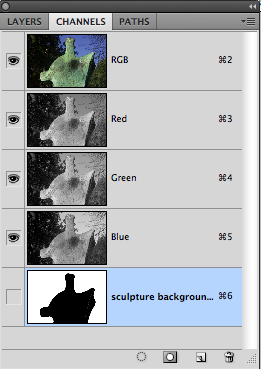
A new Alpha Channel will be created within the existing channels.
Viewing the Alpha Channel

To view the Alpha Channel on screen:
- Select the Alpha Channel in the Channels palette.
- Then de-select the RGB Channel
Note, the Alpha Channel image is a normal pixel based image which can be manipulated and modified like any other image. However, any change to the image is destructive,
Loading the selection
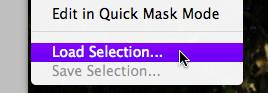
To Load the selection back into an image. go: Select > Load Selection . . .
Choose the channel

- Choose which Channel to load, if more than one is saved within the file.
- Select: OK.
Return of the marching ants

The selection should be now visible on the image.
- Command + D - Deselect
- Shift + Command + D - Reselect
- Command + H - Hide the selection
- Toggle Command + H - Unhide the selection