Duotoning an image
This will allow you to duotone an image with a separate tint in the shadows and highlights.
Highlight tint
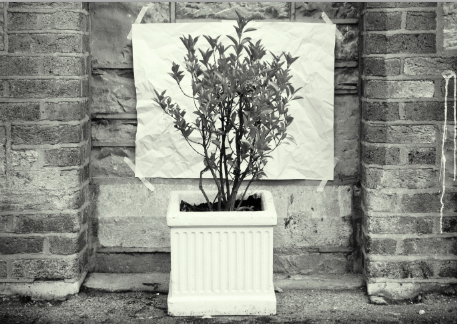
Complete the image as for a highlight tint exactly as before.
Copy the adjustment layer
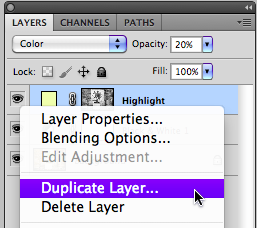
Cnrl Click on the highlight adjustment layer.
Choose Duplicate Layer . . .
Name the new layer
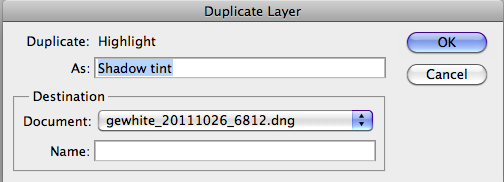
Enter Shadow Tint as a layer name..
The Mask
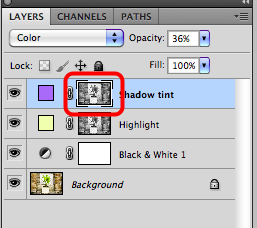
Select the Mask icon for the new layer.
Invert the mask
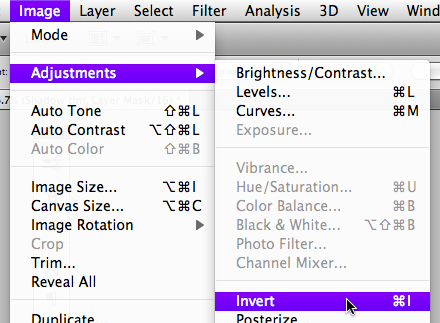
Go Image > Adjustments > Invert.
This will invert the mask to now mask the highlights instead of the shadows as previously.
Shadow tint
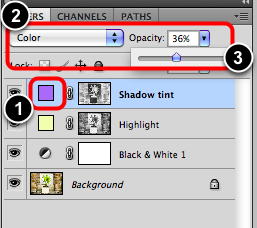
- Double click on the Solid Color icon to choose colour for shadows.
- Ensure that the Blend is set to Color.
- Adjust the Opacity to 20-30% as required.
Final duotone Image
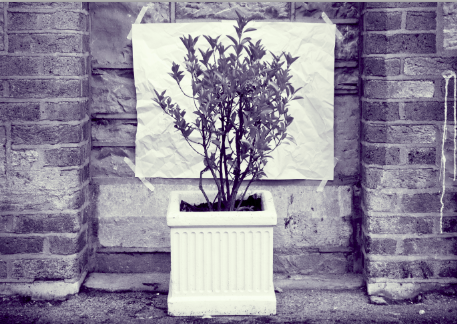
The image will now have a tinted shadows and highlights.