Controlling the shadow curve with a mask
In this lesson you can adjust the tonality of the highlight areas without effecting the Highlights.
Channels
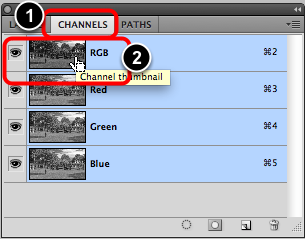
- Select the Channels tab.
- Command + Click on the RGB Channel icon.
Marching ants
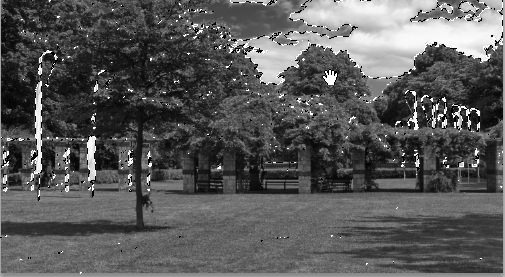
If you did the previous step correctly, you will have selected the image as indicated by the marching ants.
If not then repeat on the RGB channel.
Invert the selection
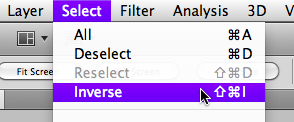
Go Select > Inverse.
Note: this will invert the selection to mask the highlights instead of the shadows.
New curves
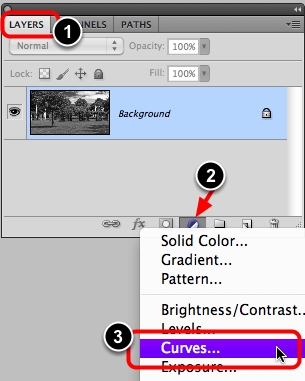
- Open the Layers tab again.
- Select New Adjustment Layer icon.
- Choose Curves . . .
Select curves panel
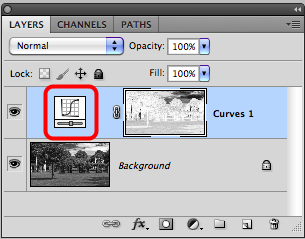
Double Click on the Curves icon if the Adjustments panel is not open.
Adjust the curve
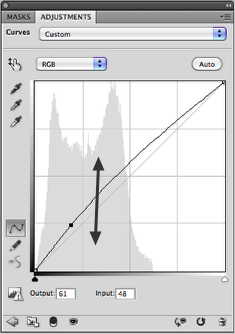
Adjust the Curve up or down to modify the shadows only.
Note the shortened histogram displaying only the shadow area.
View the results
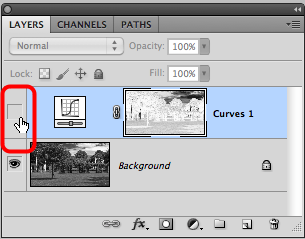
Toggle the layer on and off to view the result.