Setting preferences
In this lesson you will set your Lightroom 4 preferences.
Open Preferences

Go Lightroom > Preferences
General references
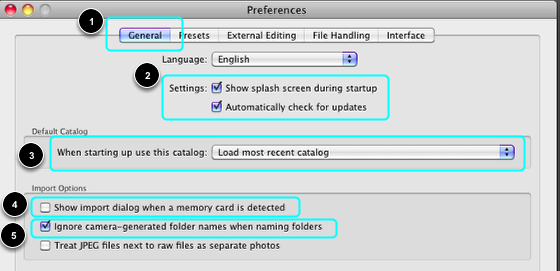
- Select General
- Tick both Settings boxes.
- Under Default Catalog, select Load default catalog.
- Do not tick box: Show import dialogue . . . .
- Tick box: Ignore camera-generated folder , , , , .
Presets Preferences
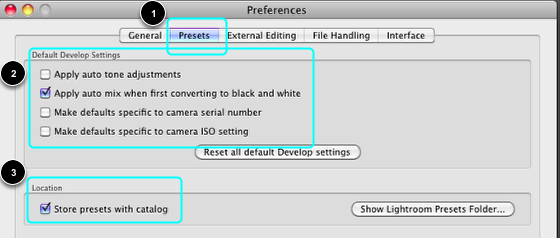
- Select: ˘Presets.
- Tick boxes as shown.
- Tick box: Store presets with catalog.
Export Editing Preferences
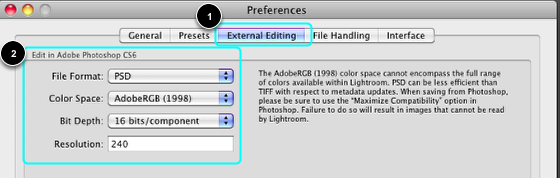
- Select: Export editing Preferences.
- Enter settings for Edit in Adobe Photoshop CS6 as shown.
File Handling Preferences
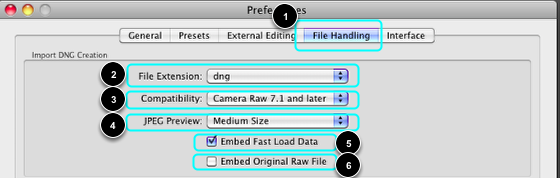
- Select: File Handling.
- Choose: dng (lowercase).
- Choose: Camera Raw 7,1 or later (this will be compatible with Photoshop CS6 and later). Use Camera Raw 6.6 or later for compatibility with Photoshop CS5.
- Choose: Medium Size.
- Tick box: Load fast load s=data.
- Do not tick box: Embed Original Raw File
Close Preferences

Click on red to close Preferences.