Using File Sender on HEANET
In this lesson you will learn how to send a file using File Sender on the HEANET
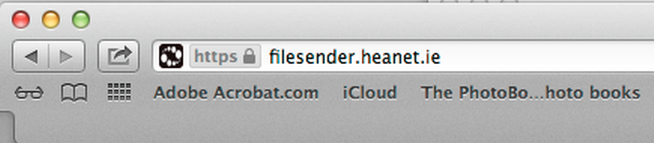
HEANET login

Choose: Login

DIT Login

You will be returned to the DIT website.
Login in using your regular Student ID and Password.
Send File
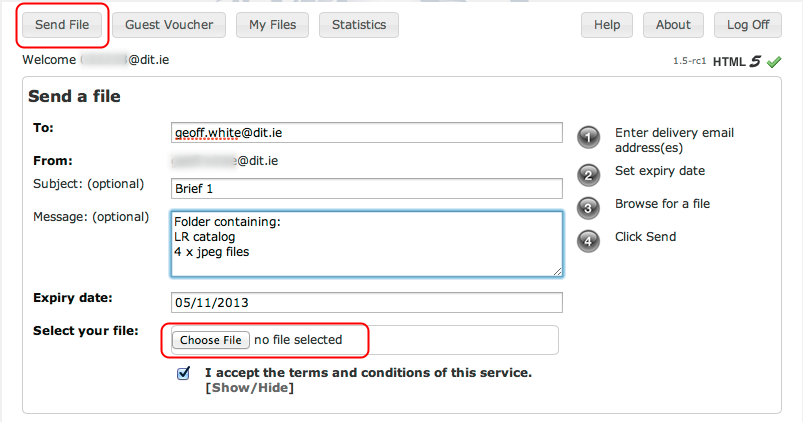
Select: Send File.
Insert the recipient's email address.
Add Subject text.
Add a list of the contained files.
Leave the Expiry Date as set (30 days default).
Select: Choose File
Choose file to send
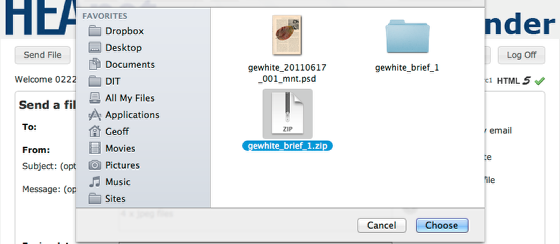
Choose the file to be sent.
Note: File Sender will only allow one file at a time to be sent, therefore multiple files should be placed in a folder and compressed (zipped) as one file.
Send
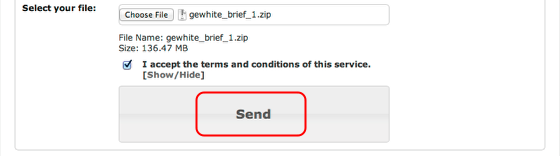
Send
Large Files
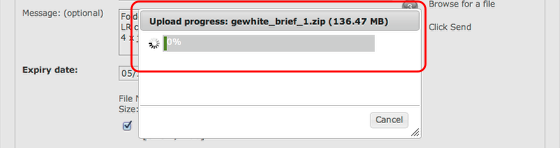
Files Sender is intended for sending large files, however be aware the uploading files may take some time!
Complete
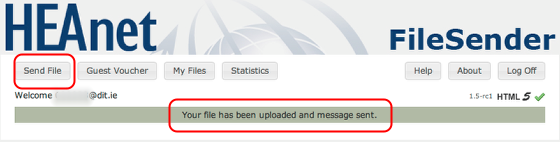
When it is complete it will it will give you ta confirmation massage.
If you wish to send further files then choose: Send File.
My Files
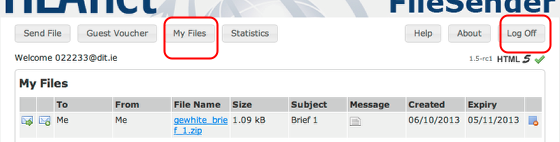
Choose My Files to view the files you have uploaded.
When you are finished, choose: log off and close your browser.
Email confirmation
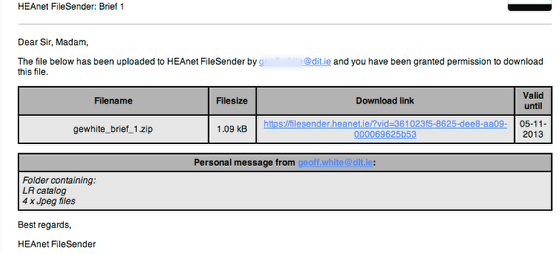
You will receive a confirmation email within 10 minutes of successful uploading of your files.
The intended recipient will also receive an email informing them that the file is on the server for them to download. It will also inform them of the time and date the file was uploaded.