Upgrading from Lightroom 3 to Lightroom 4
In this tutorial you will upgrade your LR 3 catalog to Lr 4
Backup LR 3

- Open LT 3
- Lightroom > Catalog Settings . . .
Set Backup
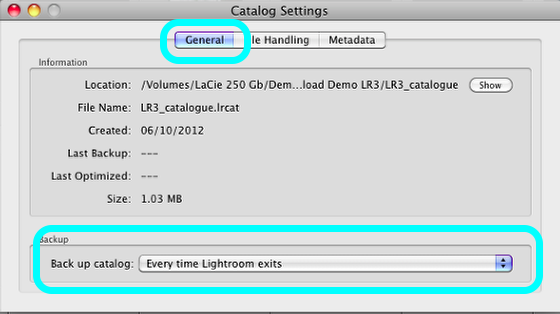
- Select Every time Lightroom exits
- Now Quit LR 3.
- This will force LR 3 to backup up the catalog be for you upgrade it to LR 4
Backup Options
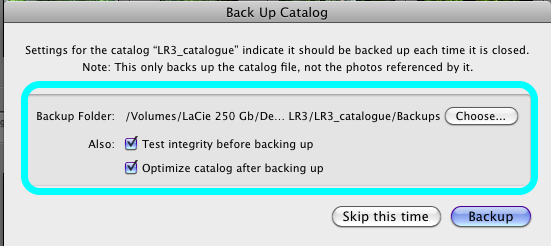
- Check that the backup is stored with your existing backups.
- Select both boxes
- After the process is finished LR 3 will quit.
All Photographs
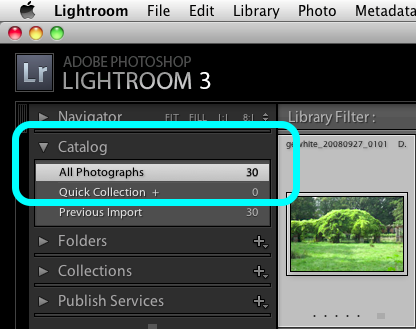
- Re open LR 3
- Select All Photographs in Catalog.
Export LR 3 catalog
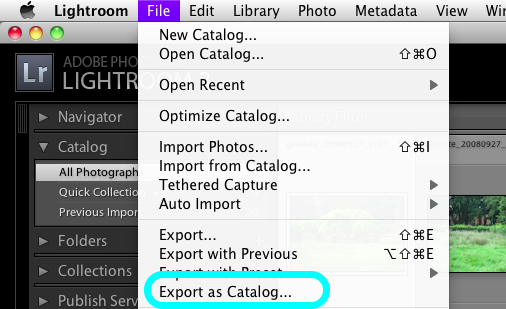
File > Export as Catalog . . .
Export dialogue
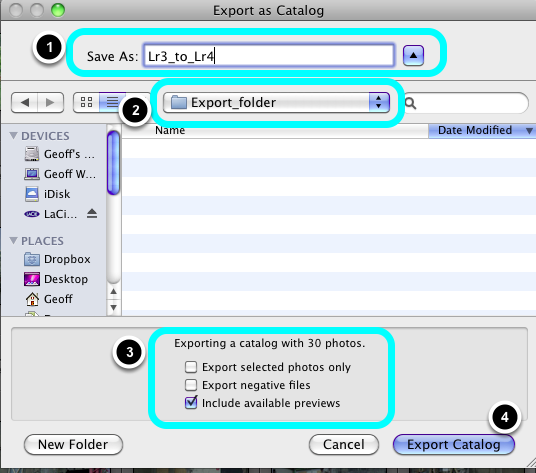
- Clearly name the file such as: Lr3_to_Lr4
- Navigate to your Export Folder.
- Select the Include available previews box, not the other two.
- Press Export Catalog.
- When the file has been exported , quit LR 3.
New LR 4 Catalog
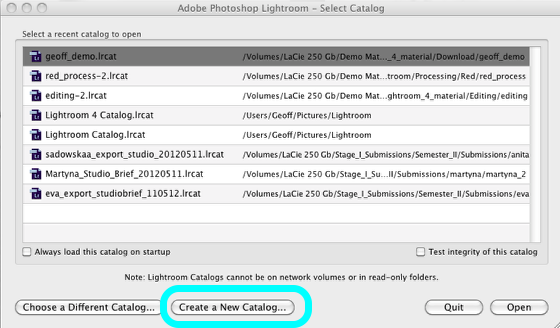
- Open LR 4 using the OPT [Alt] Key.
- Choose Create a New Catalog.
- Name the catalog, and place it beside your Holding and Working folders
Import the LR 3 catalog
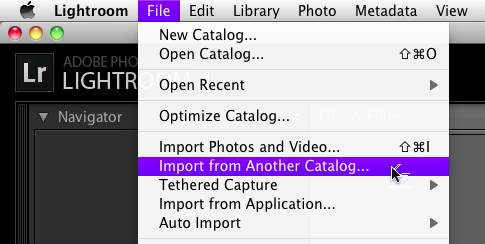
File > Import from another catalog . . .
Select import catalo

Navigate to the LR 3 export catalog.
Select the file.
Catalog Upgrade
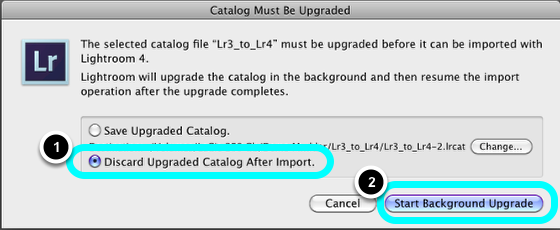
LR 4 will now import the LR 3 catalog into it's (empty) catalog.
- Select: Discard Upgraded Catalog After Import.
- Select: Start Background Upgrade.
Import from catalog
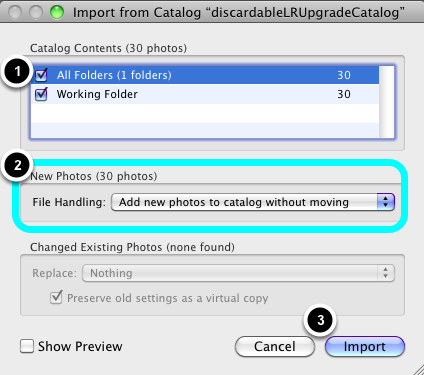
- LR 4 will indicate the source of your imported files.
- Select: Add new photos to catalog without moving.
- Select Import.
Files in LR4
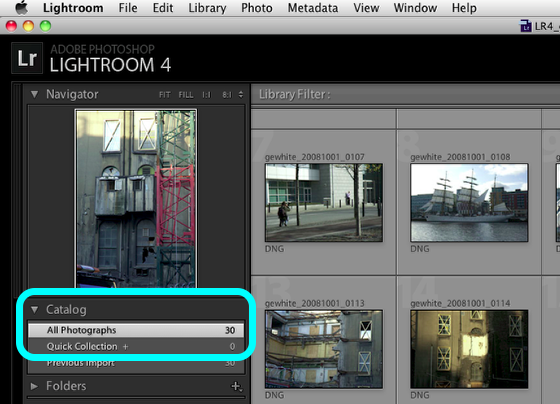
When the import process is complete, you should have the same total of images i LR 4 as you had in Lr 3.